Application debugging with Eclipse
Introduction
This wiki page explains how to use Eclipse to develop simple application on Variscite's VAR-SOM-AM33.
Download and install
Download from:
- Install OpenJDK Java 7 runtime using Ubuntu software center
- Run Eclipse:
Set your workspace:

You can select any folder you like.
Close the "welcome window".
You should be at:

Eclipse installations of additional packages
- Start the Eclipse IDE.
- Make sure you are in your Workbench and select "Install New Software" from the "Help" pull-down menu.
- Select Kepler - http://download.eclipse.org/releases/kepler from the "Work with:" pull-down menu.
- Expand the box next to "Linux Tools" and select the LTTng - Linux Tracing Toolkit boxes.
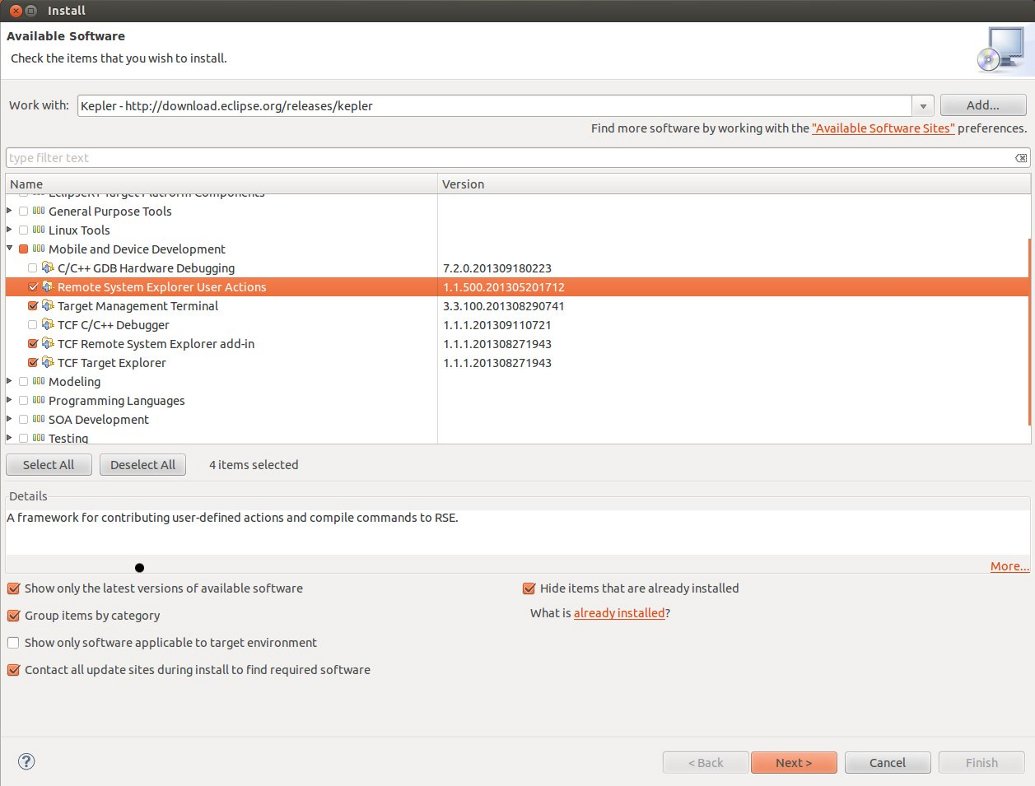
- Expand the box next to "Mobile and Device Development" and select the following boxes:
- C/C++ Remote Launch
- Remote System Explorer End-user Runtime
- Remote System Explorer User Actions
- Target Management Terminal
- TCF Remote System Explorer add-in
- TCF Target Explorer
- Expand the box next to "Programming Languages" and select the Autotools Support for CDT and C/C++ Development Tools boxes.
- Complete the installation and restart the Eclipse IDE.
Comment:
Some of the packages may be already installed.
An install window example:
Change target's password
Create a simple project for VAR-SOM_AM33
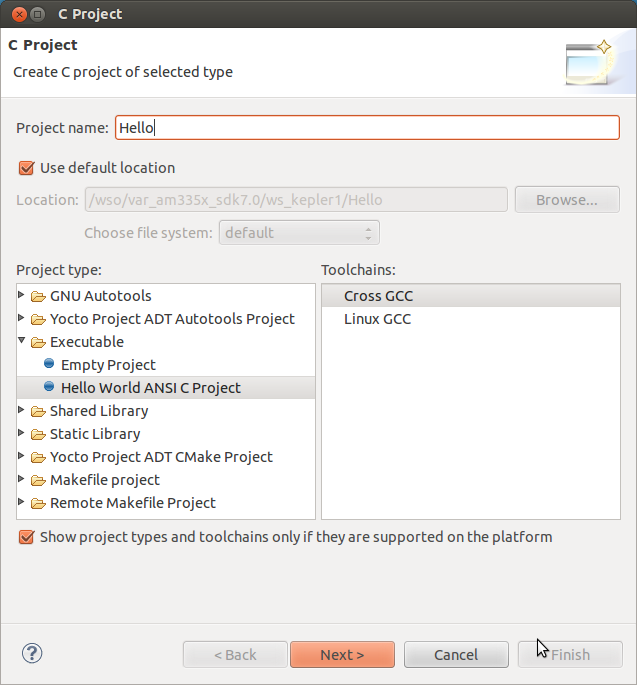
Create a new project:
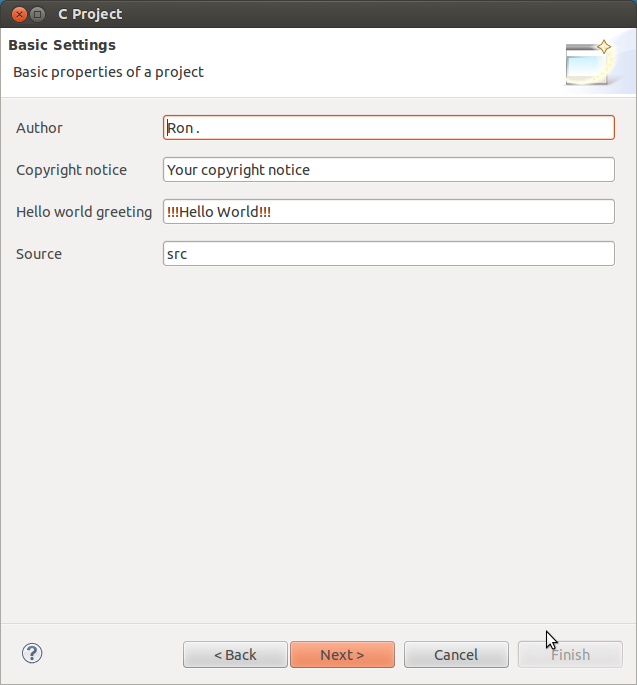
Set basic information:
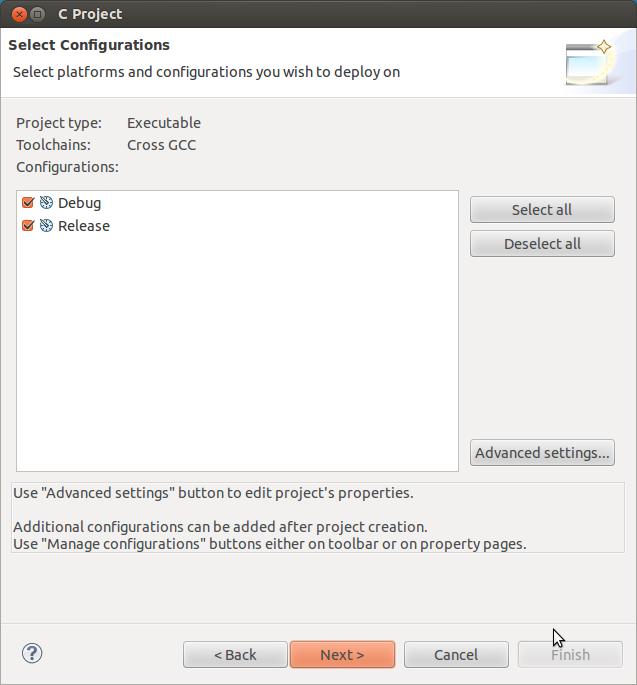
Just click next for the default:
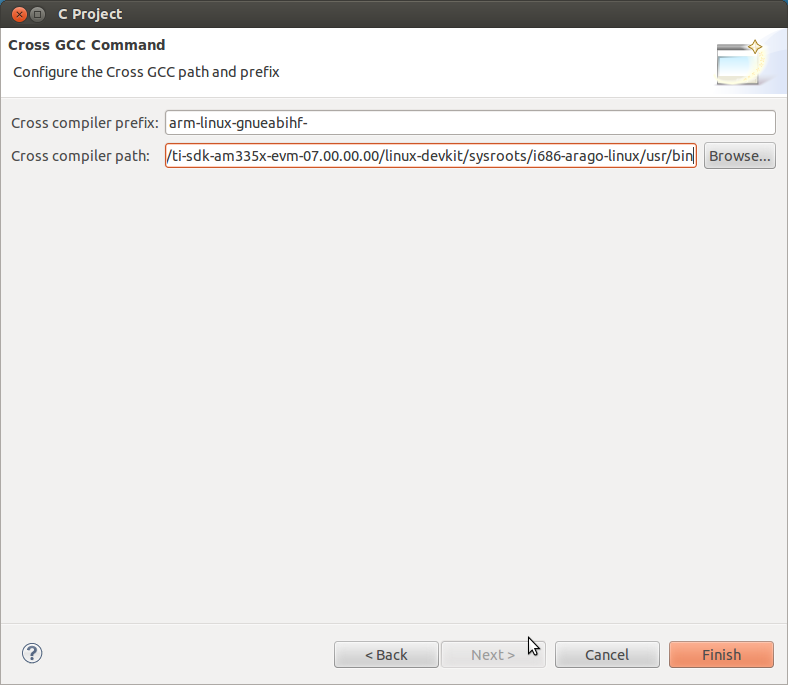
Set the tools path and prefix. Browse to the actual SDK location:
.../ti-sdk-am335x-evm-07.00.00.00/linux-devkit/sysroots/i686-arago-linux/usr/bin
arm-linux-gnueabihf-
Expand the Hello project select the Console tab and hit ctrl b :
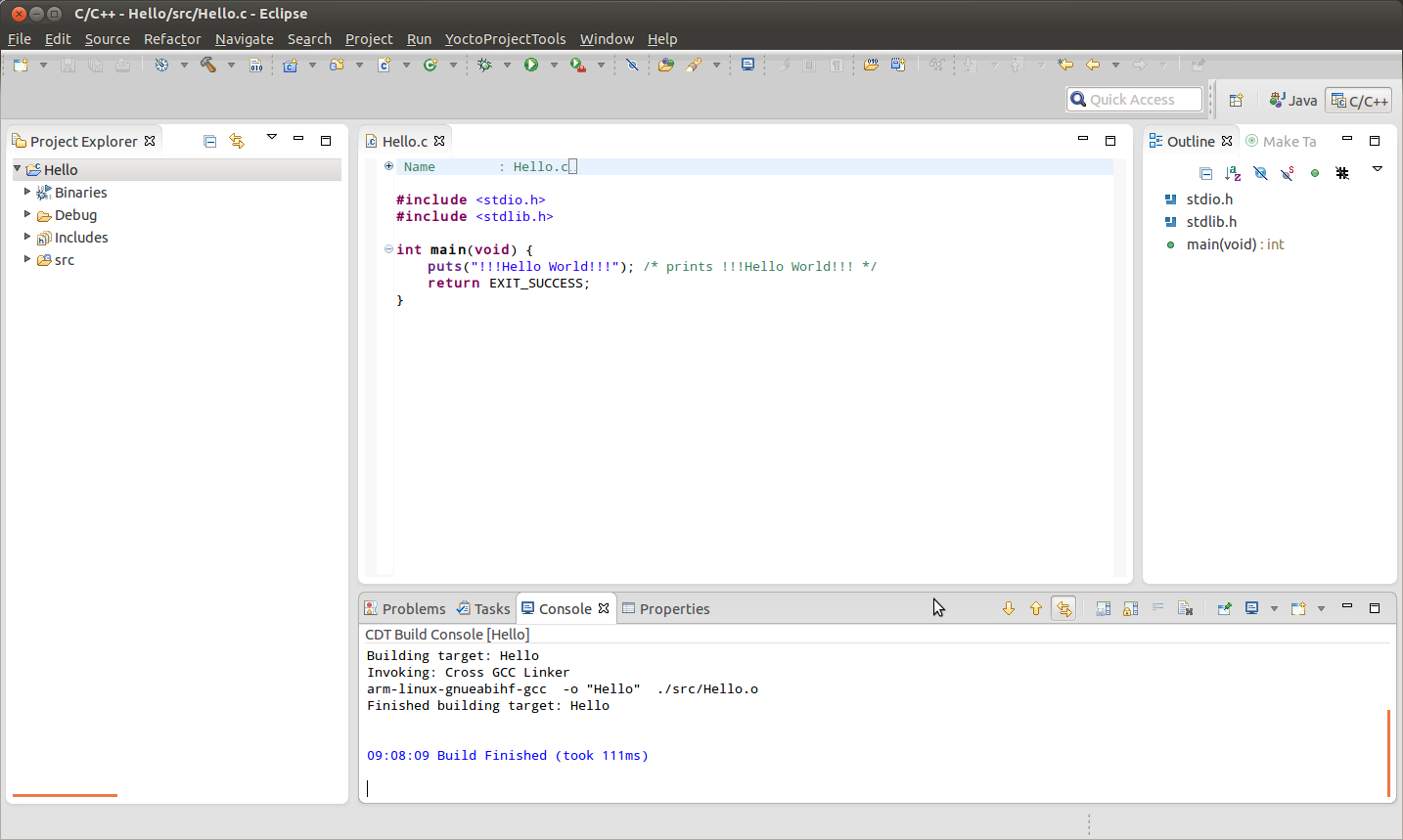
Project is built and ready to be debugged.
Create communication link to VAR-SOM_AM33 taregt
Switch to Remote System Explorer tab:
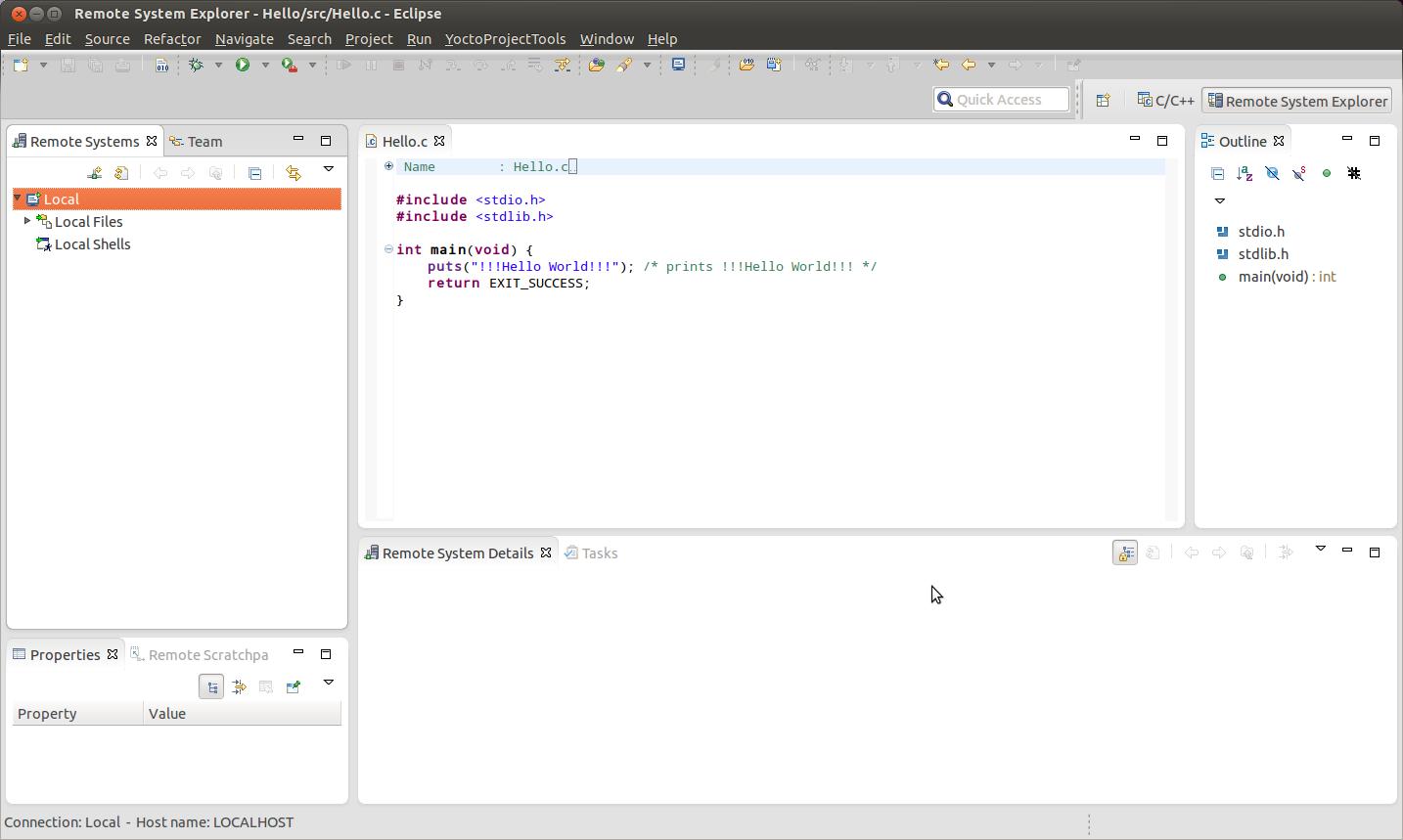
Create a new connection select SSH only:
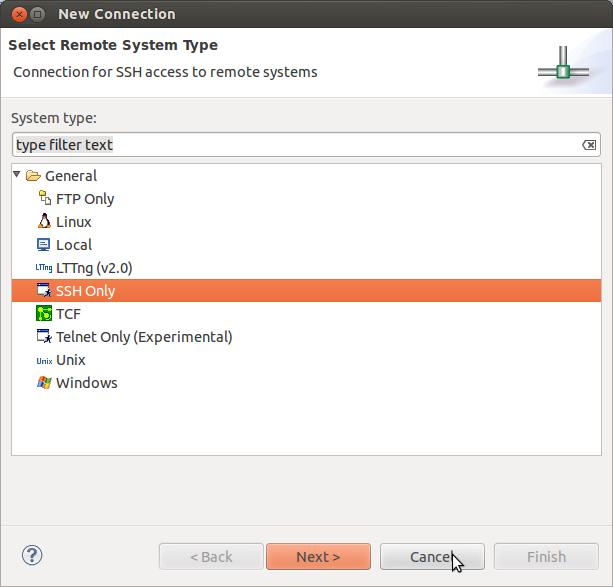
Set target IP and name:
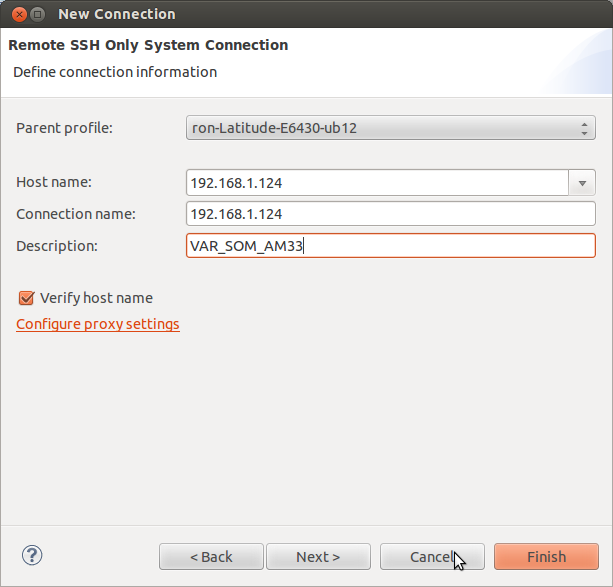
Hit finish to create the remote connection. Right click on the new connection name and hit connect.
Enter user name and password. Use root/root for both:
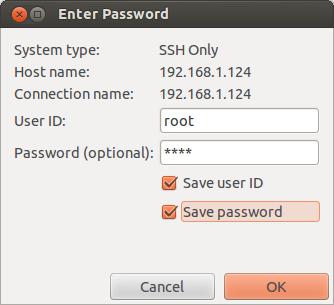
Hit OK. You should be able to browse target file system via the connection manager.
Debug the project on VAR-SOM_AM33 target
Switch back to the c/c++ view. Click on the Hello project from the left tab.
Run->Debug configuration. Double click o the C/C++ Remote Application:
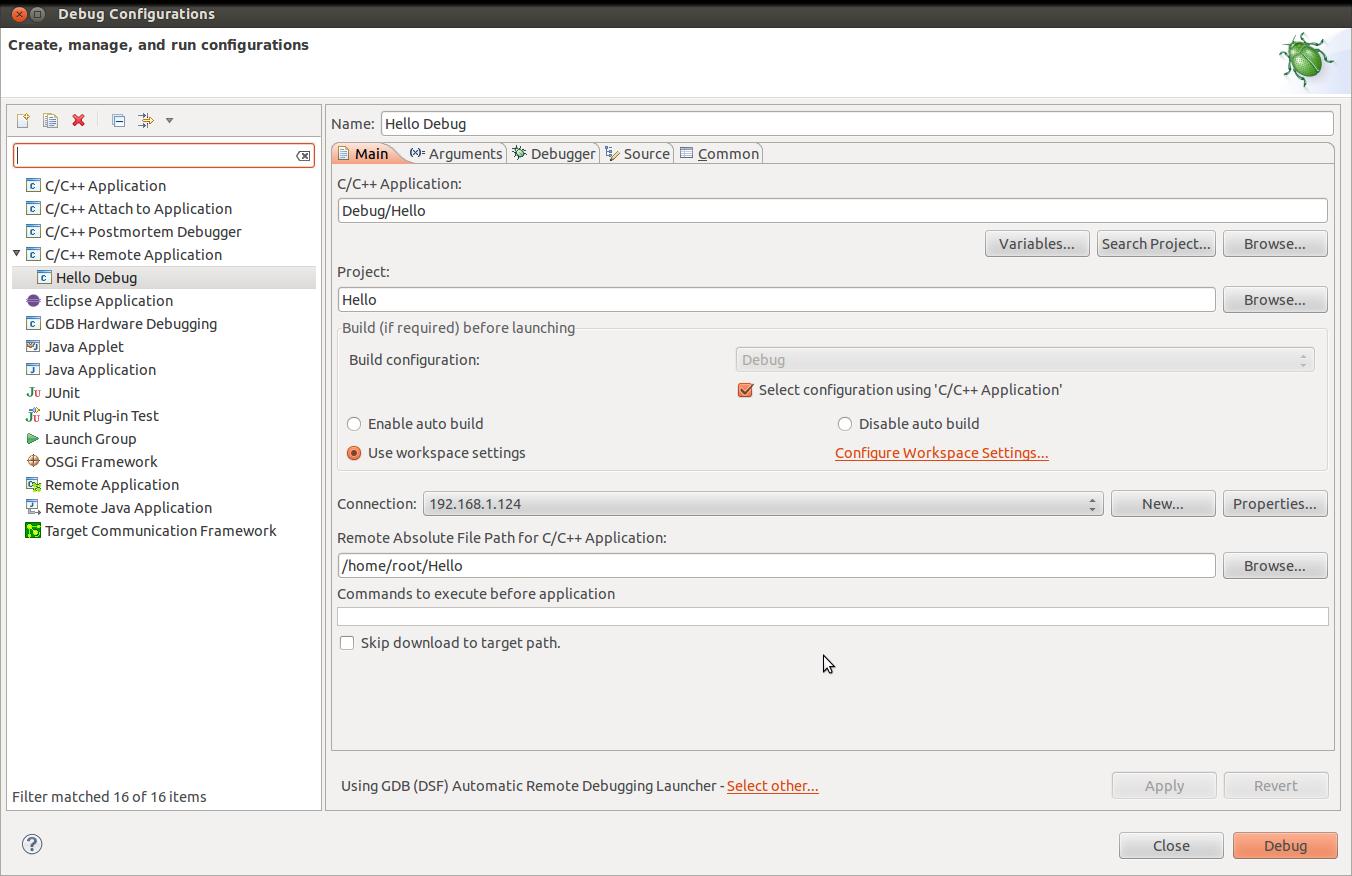
Fill the Remote Absolute File path
Switch to debugger tab and fill the gdb prefix:
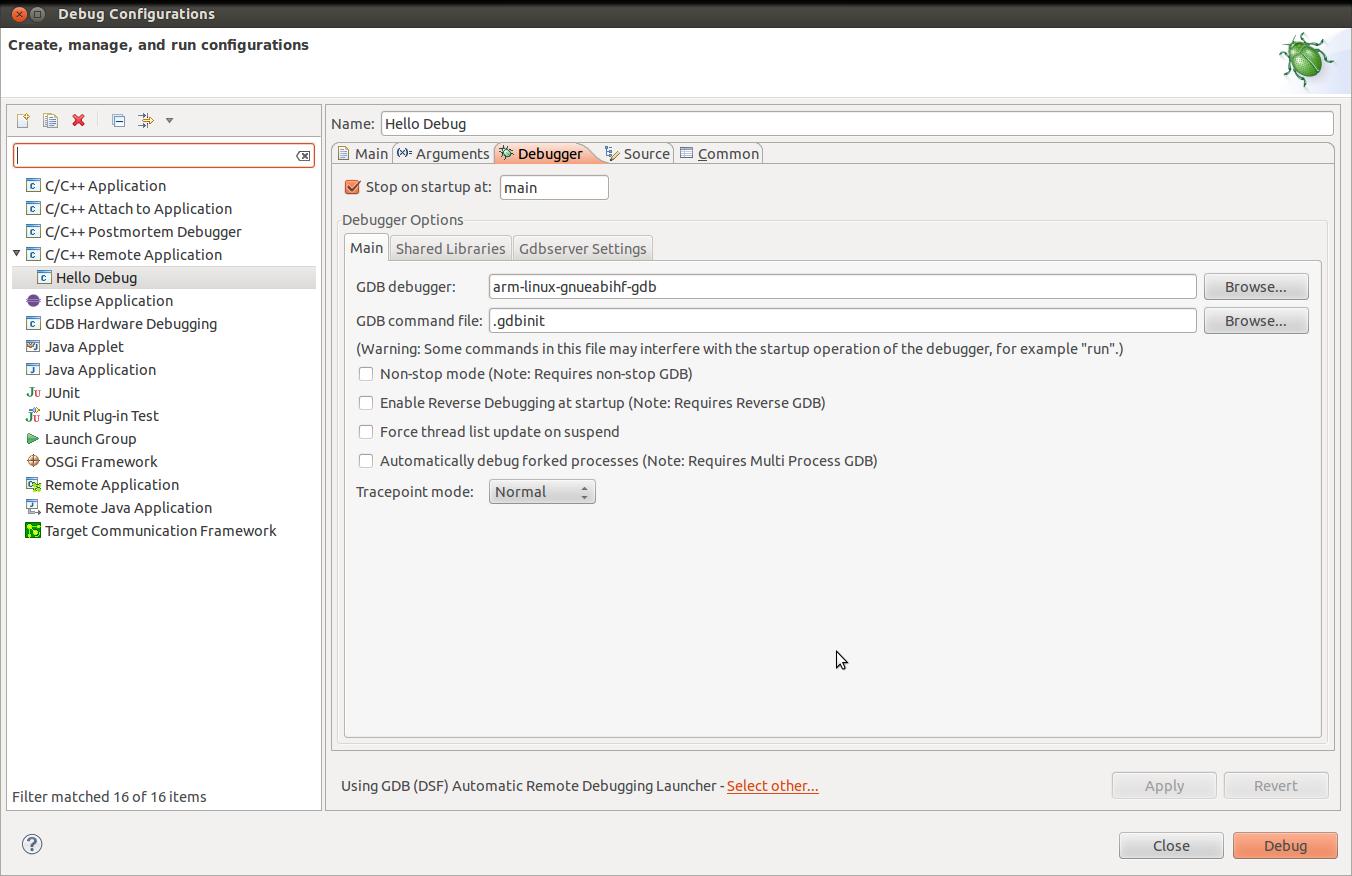
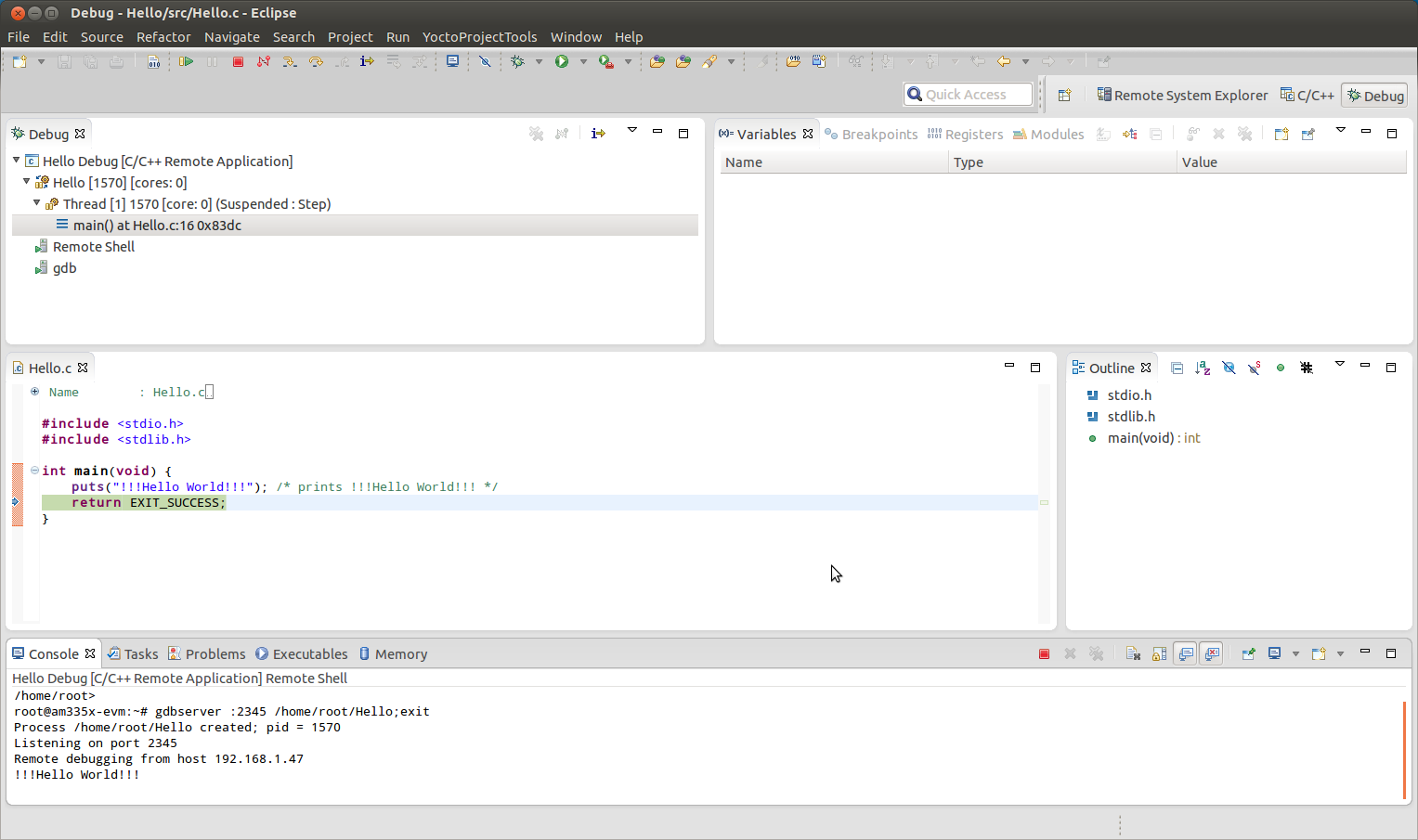
Hit debug and you should be able to debug the file on target: